
20%

🎾Tennis OBS Graphics + Complete Control Panel

Original price was: $ 50,00.Current price is: $ 40,00.

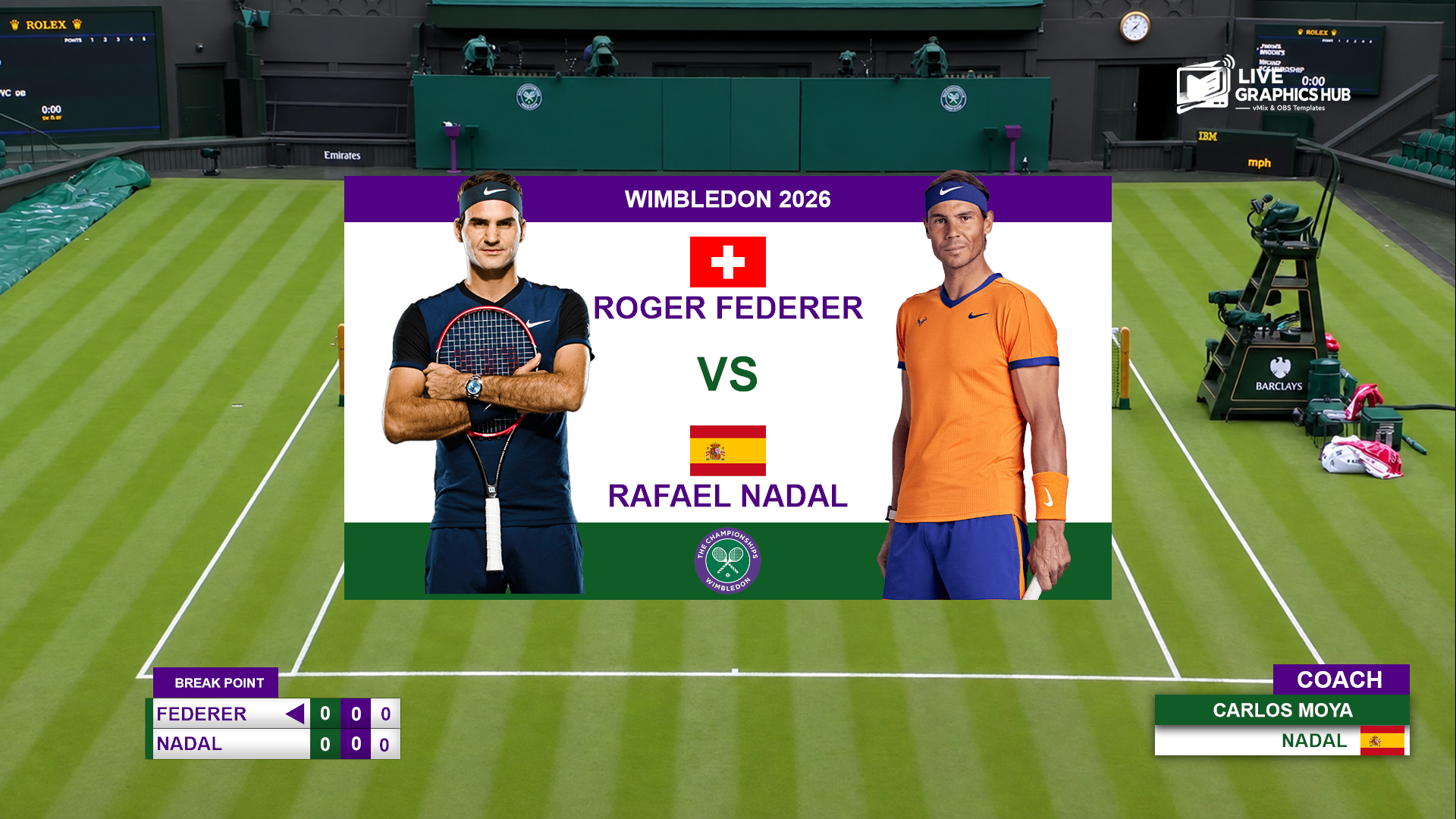
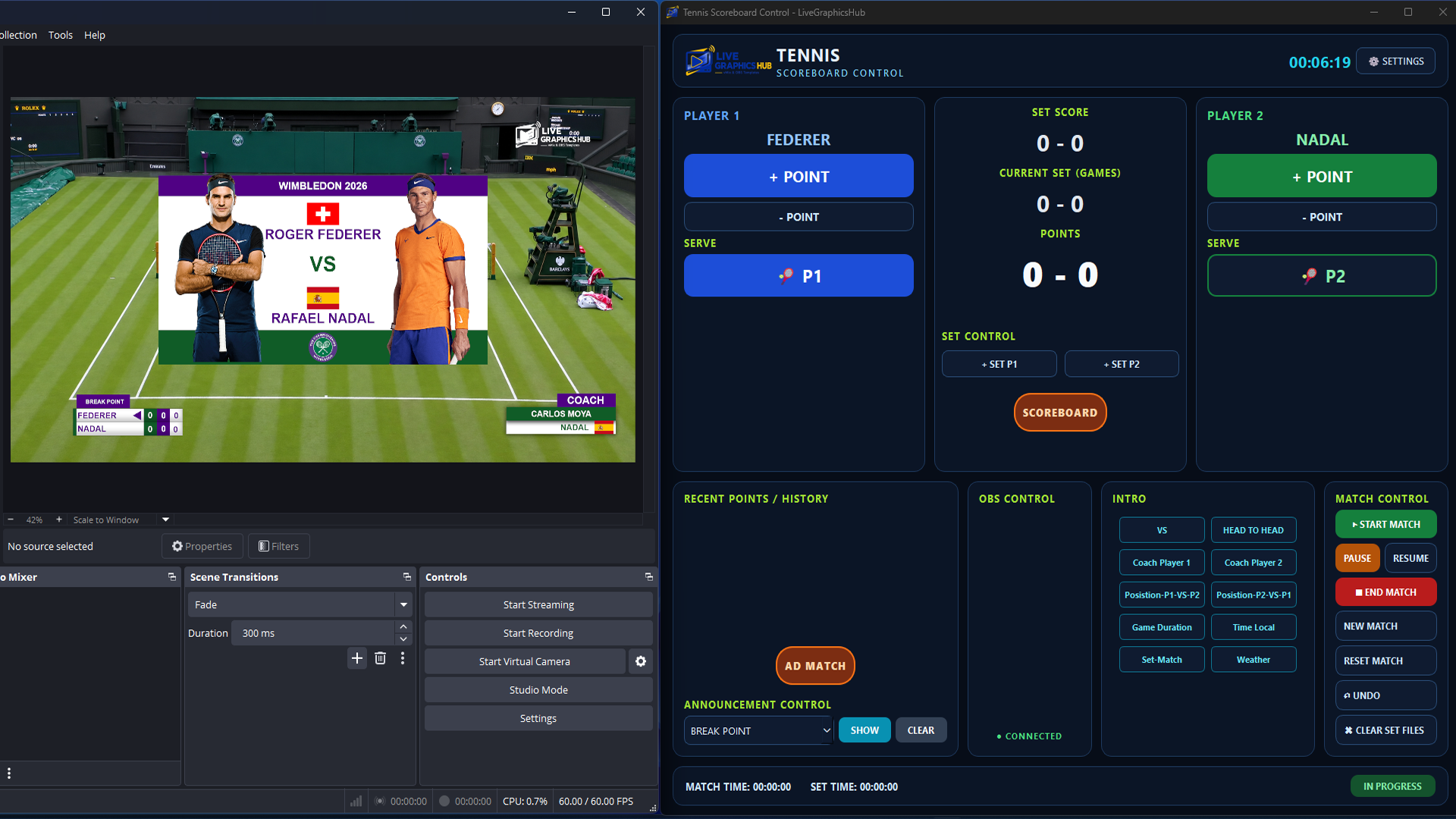
Professional Tennis OBS Graphics with a complete control panel for live tennis broadcasts. Easily manage players, sets, games, points, service indicators and match information directly in OBS Studio.

Instant Download
Secure Payments
Free Updates & Support

Take your tennis live broadcasts to the next level with a professional Tennis OBS Graphics Package designed for OBS Studio.

This package includes high-quality tennis broadcast graphics and a complete control panel that gives you full control over the scoreboard and match information during your live stream.

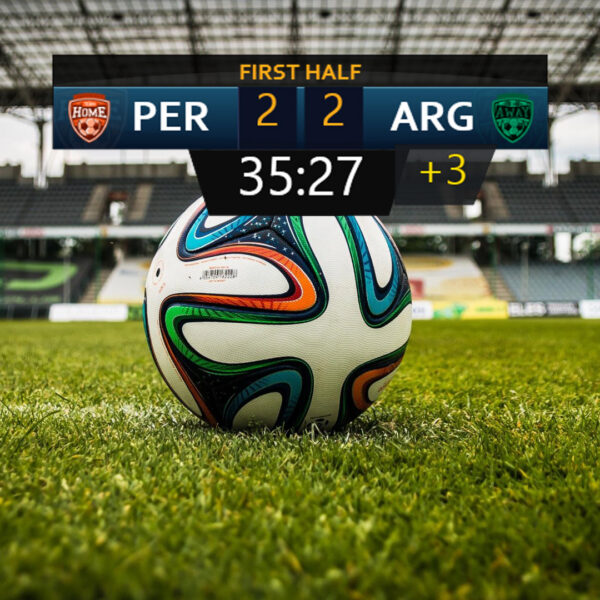
🎾 TENNIS SCOREBOARD GRAPHICS

Display your tennis match information professionally on screen, including:

• Player names
• Sets
• Games
• Points
• Service indicator
• Break Point
• Match information
• Match status

🎛️ COMPLETE CONTROL PANEL

The included control panel allows you to manage your tennis graphics quickly and easily during the live match.

Update the score, control match elements and manage the broadcast graphics without manually editing your OBS scenes.

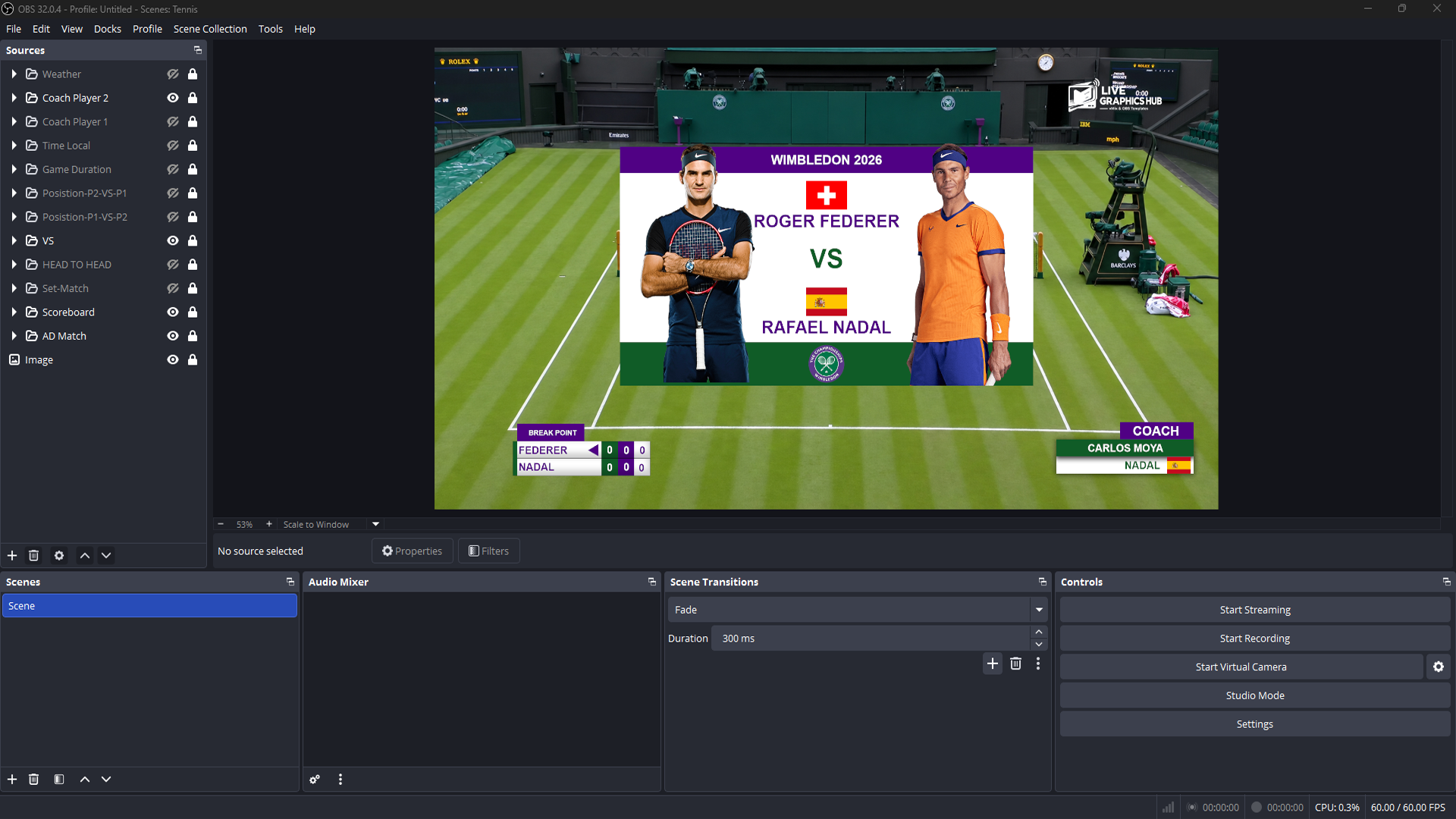
📺 DESIGNED FOR OBS STUDIO

Built specifically for OBS Studio and suitable for live broadcasts on YouTube, Facebook and other streaming platforms.

🎯 PERFECT FOR

• Tennis tournaments
• Tennis clubs
• Sports channels
• YouTube live streams
• Facebook live broadcasts
• Local competitions
• Professional sports broadcasts

⚡ DIGITAL PRODUCT

This is a digital product. No physical product will be shipped.

Get professional tennis broadcast graphics and a complete control system for your OBS Studio production.

LiveGraphicsHub — Professional Broadcast Graphics for OBS & vMix.

Here is the step-by-step guide to connect OBS Studio with the Tennis Controller:

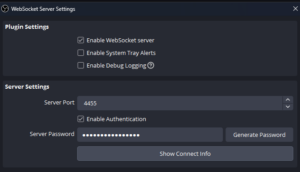
1. Open WebSocket Settings in OBS From the top menu bar in OBS Studio, click on Tools and select WebSocket Server Settings.
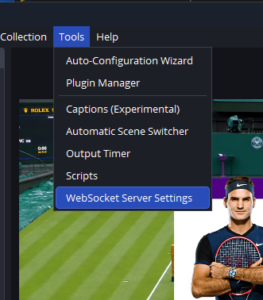
2. Enable the WebSocket Server Ensure the checkbox for Enable WebSocket server is marked, then click the Show Connect Info button to display the connection details.
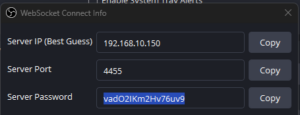
3. Retrieve Connection Info & Password A pop-up window will appear showing the Server IP, Server Port (default is usually 4455), and Server Password. Copy the Server Password.
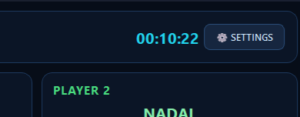
4. Access the Controller Settings Open your Scoreboard Controller application and navigate to the Settings panel.
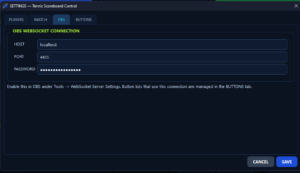
5. Input Connection Details & Save

  • Locate the OBS CONNECTION section inside the settings.

  • Paste the copied password into the Password field.

  • Verify that the Port (4455) and Host (localhost) match the OBS settings.

  • Click SAVE to apply changes, then click CONNECT.
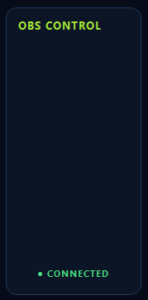
6. Verify Successful Connection The status indicator under OBS SOURCES in the controller will turn green and display OBS: CONNECTED, confirming that the panel is linked and ready to control live graphics.
Reviews

There are no reviews yet.

Be the first to review “🎾Tennis OBS Graphics + Complete Control Panel”

Your email address will not be published. Required fields are marked *

Frequently Asked Questions

1. What payment methods do you accept?

We accept secure payment methods including credit/debit cards and PayPal, making it easy and convenient to purchase our digital products.

2. How do I receive my digital products?

After your payment is successfully completed, you can download your purchased files directly from your account or from the download link provided after checkout.

3. When will I receive my download?

Digital products are delivered instantly after successful payment. In some cases, it may take a few moments for your download link to become available.

4. Can I get a refund for a digital product?

Due to the nature of digital products, all sales are generally final once the files have been downloaded. However, if you experience a technical issue with your purchase, please contact our support team and we will be happy to assist you.

5. Do you provide updates and support?

Yes. We may provide updates for selected products, and our support team can assist you with installation, setup, and technical questions related to your purchased template.

Obs

Discover professional graphics and templates designed for OBS Studio. Explore overlays, lower thirds, scoreboards, transitions, and complete broadcast packs to enhance your live streams.

Brand Products

Digital Delivery

All products available on our website are digital products. No physical items will be shipped. After your payment has been successfully completed, your purchased files will be available for instant download from your account or through the download link provided after checkout.

  • Instant digital delivery
  • No shipping fees
  • No physical products will be shipped
  • Download your files anytime from your account
  • Secure and convenient digital delivery

Returns & Refunds

Due to the digital nature of our products, all sales are generally final once a product has been downloaded. We do not accept returns of digital products after download. However, if you experience a technical problem with your purchase or receive a defective or incorrect file, please contact our support team at livegraphicshub@gmail.com. We will review the issue and provide an appropriate solution, such as a replacement file or another suitable resolution.

Refund requests may be considered only in cases where the purchased product cannot be delivered or has a significant technical issue that cannot be resolved.

Reviews

There are no reviews yet.

Be the first to review “🎾Tennis OBS Graphics + Complete Control Panel”

Your email address will not be published. Required fields are marked *