
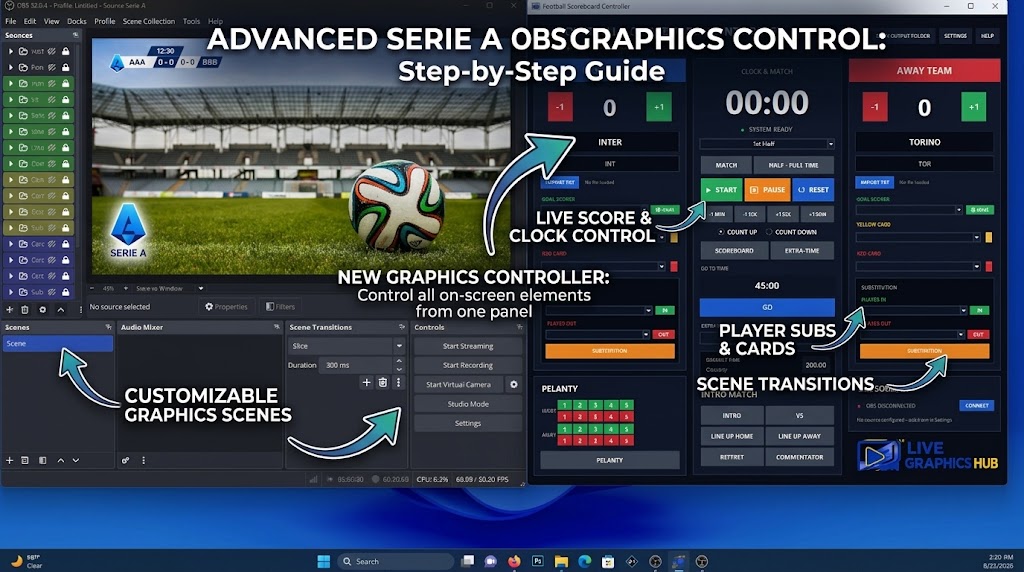
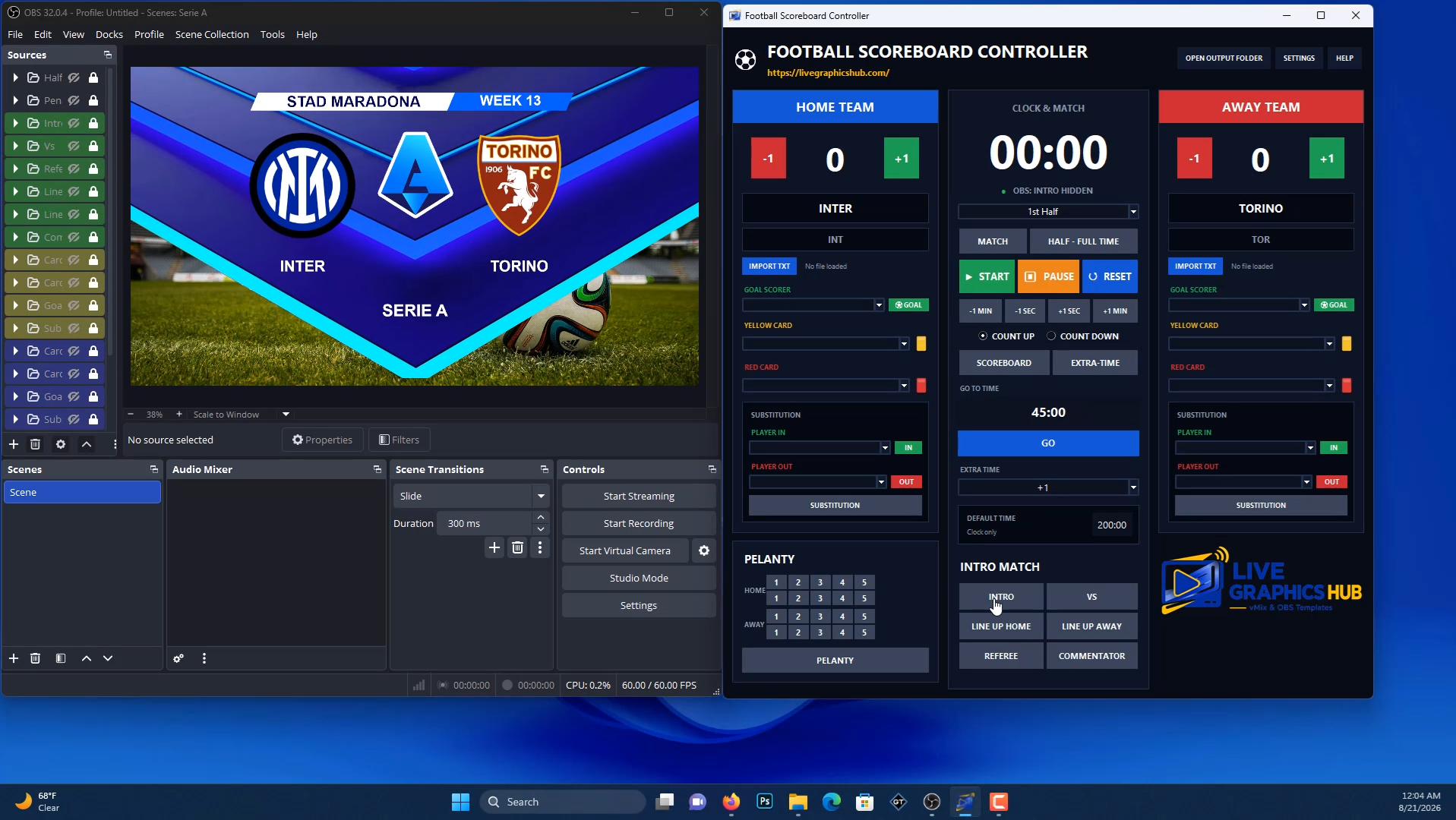
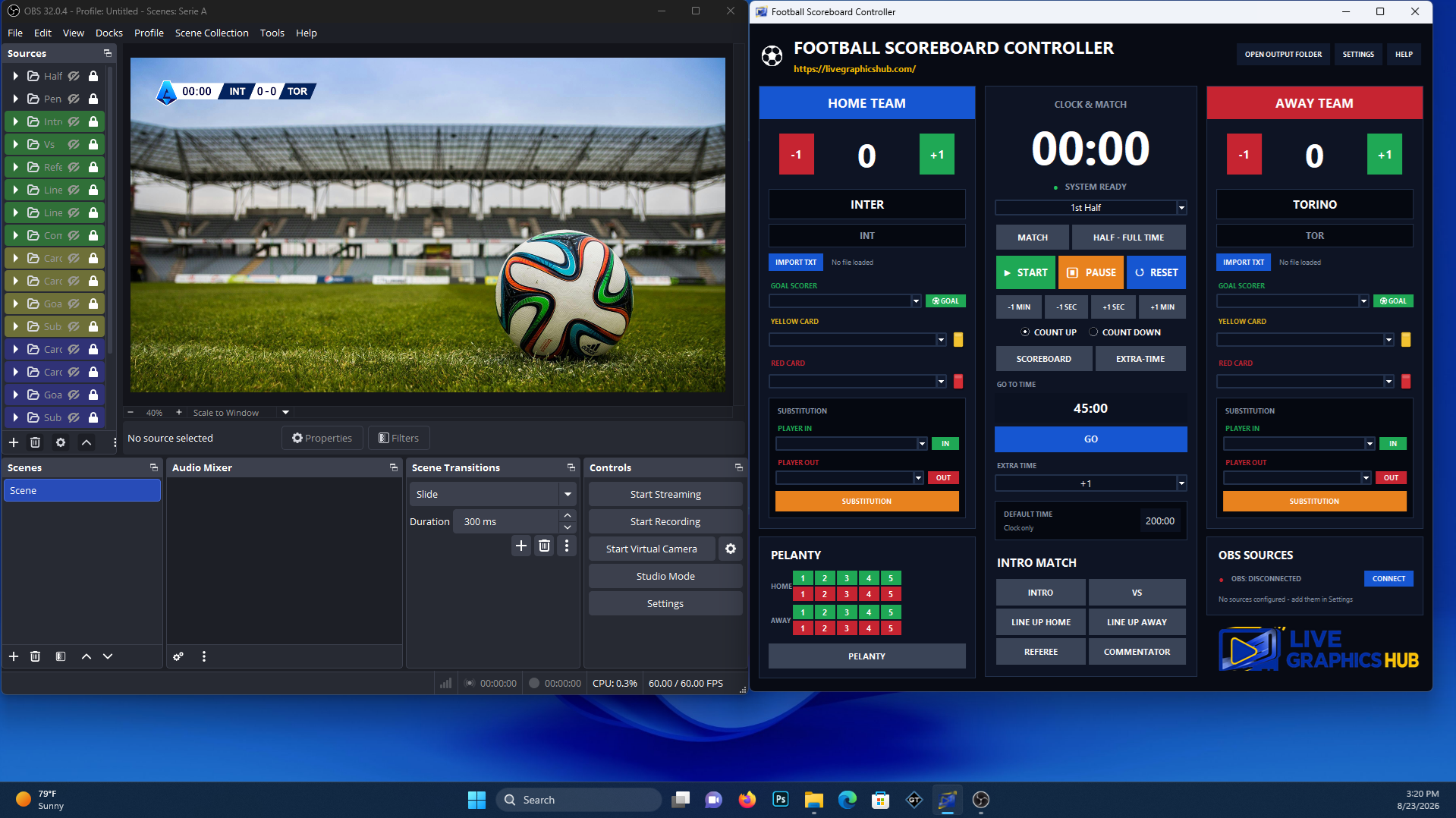

🇮🇹 Serie A OBS Graphics – Match Data & Graphics Output Controller
Professional Serie A Graphics Package for OBS Studio with an Advanced Controller
Take your football live production to the next level with a professional Serie A Graphics Package for OBS Studio, featuring a powerful Match Data & Graphics Output Controller.
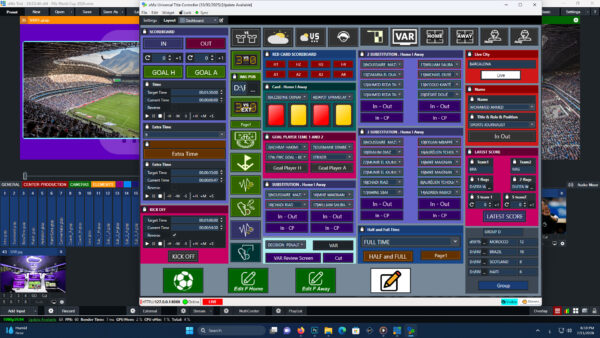
The new Controller combines two essential functions in one easy-to-use interface:
🎛️ Match Data Input
Enter and manage all the important match information directly from the Controller:
- Home & Away Team Names
- Team Logos
- Score
- Match Time
- Competition / League
- Stadium
- Referee
- Starting XI
- Lineups
- Goal Scorers
- Yellow & Red Cards
- Substitutions
- Match Information
📺 Graphics Output Control
The Controller also gives you direct control over which graphics are displayed on the OBS broadcast.
Show or hide graphic elements instantly without having to manually search through OBS Sources.
Control elements such as:
- Scoreboard
- Lower Thirds
- Goal Graphics
- Yellow Card
- Red Card
- Substitution
- Lineup
- Starting XI
- Goal Scorer
- Match Information
- Full Time
- Other Broadcast Graphics
⚡ One Controller – Complete Match Graphics Control
The Controller is designed to make live football production faster, easier and more professional.
Enter your match data, then control the Graphics Output directly from the same interface.
Input the data → Select the graphic → Show it on air.
No complicated OBS source management.
No need to search through multiple scenes and sources during the match.
🎥 Designed for OBS Studio
The package is designed specifically for OBS Studio and is suitable for:
- Football Live Streaming
- YouTube Live
- Facebook Live
- Twitch
- Sports Production
- Local Football Broadcasting
- Professional Live Match Coverage
🇮🇹 Built for Serie A
A complete graphics solution designed for Italian Serie A football broadcasts, combining professional broadcast graphics with an advanced Controller for Match Data Input and Graphics Output Control.
🚀 Complete Solution
Serie A Graphics + Match Data Controller + Graphics Output Controller + OBS Studio
Everything you need to create a professional football broadcast from one powerful control interface.
Here is the step-by-step guide to connect OBS Studio with the Football Scoreboard Controller:
1. Open WebSocket Settings in OBS From the top menu bar in OBS Studio, click on Tools and select WebSocket Server Settings.
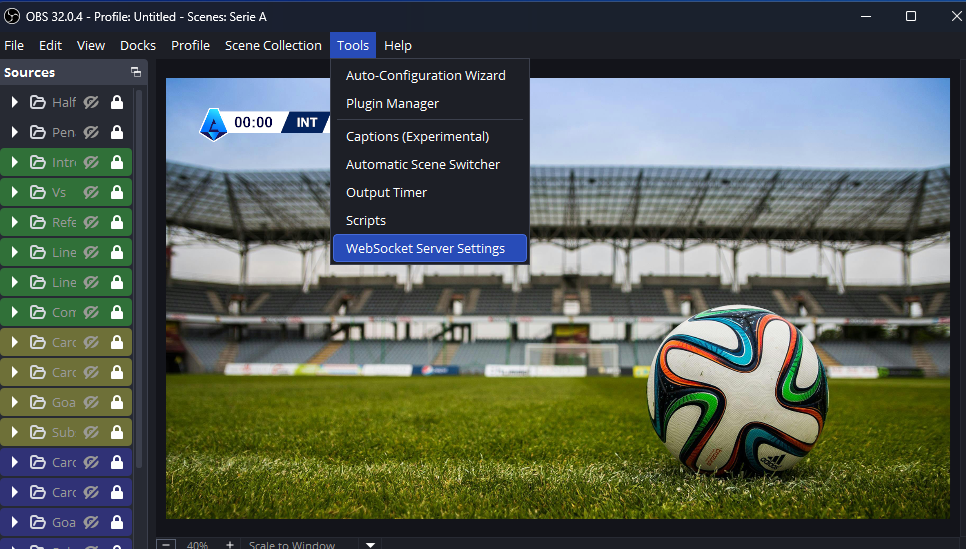
2. Enable the WebSocket Server Ensure the checkbox for Enable WebSocket server is marked, then click the Show Connect Info button to display the connection details.
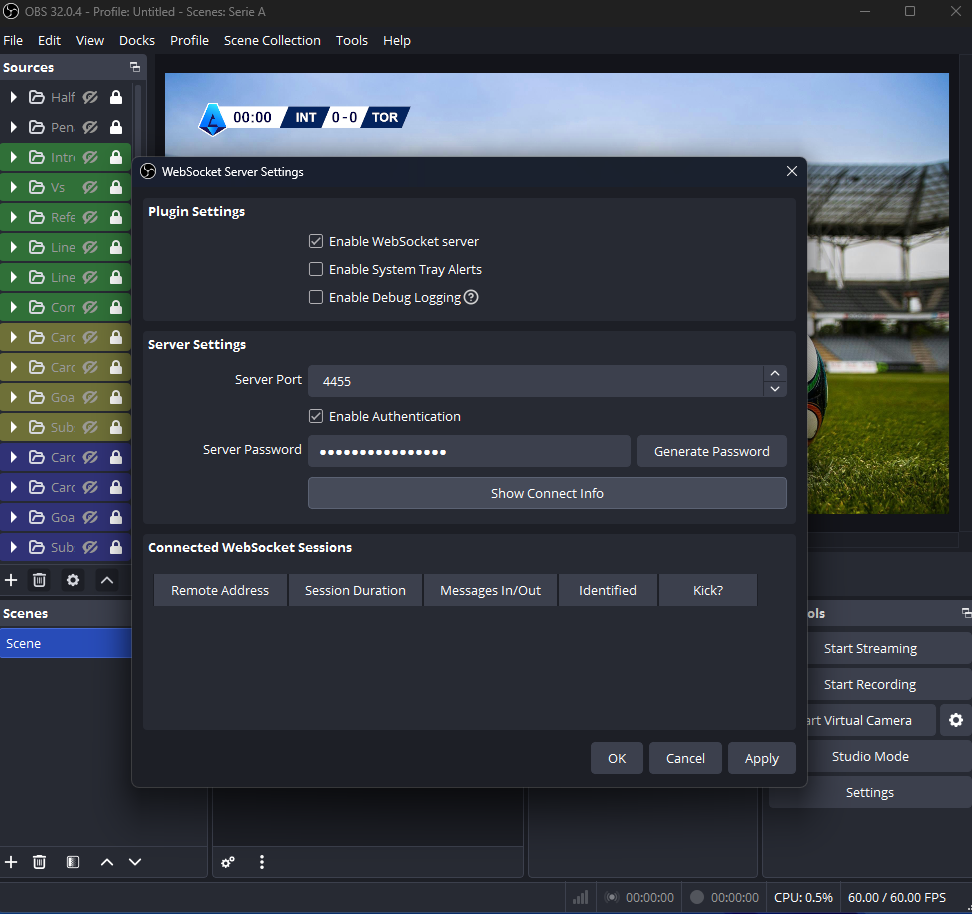
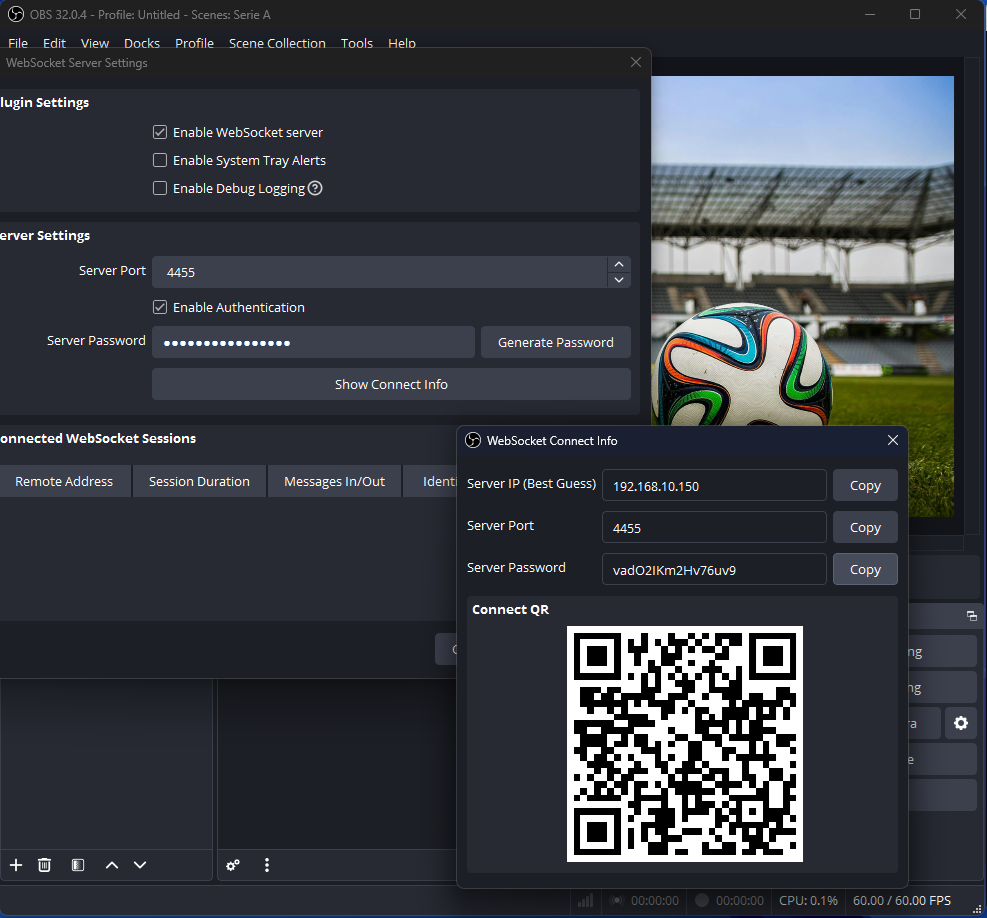
3. Retrieve Connection Info & Password A pop-up window will appear showing the Server IP, Server Port (default is usually 4455), and Server Password. Copy the Server Password.
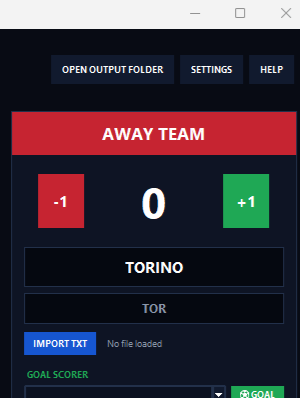
4. Access the Controller Settings Open your Scoreboard Controller application and navigate to the Settings panel.
5. Input Connection Details & Save
-
Locate the OBS CONNECTION section inside the settings.
-
Paste the copied password into the Password field.
-
Verify that the Port (4455) and Host (
localhost) match the OBS settings. -
Click SAVE to apply changes, then click CONNECT.
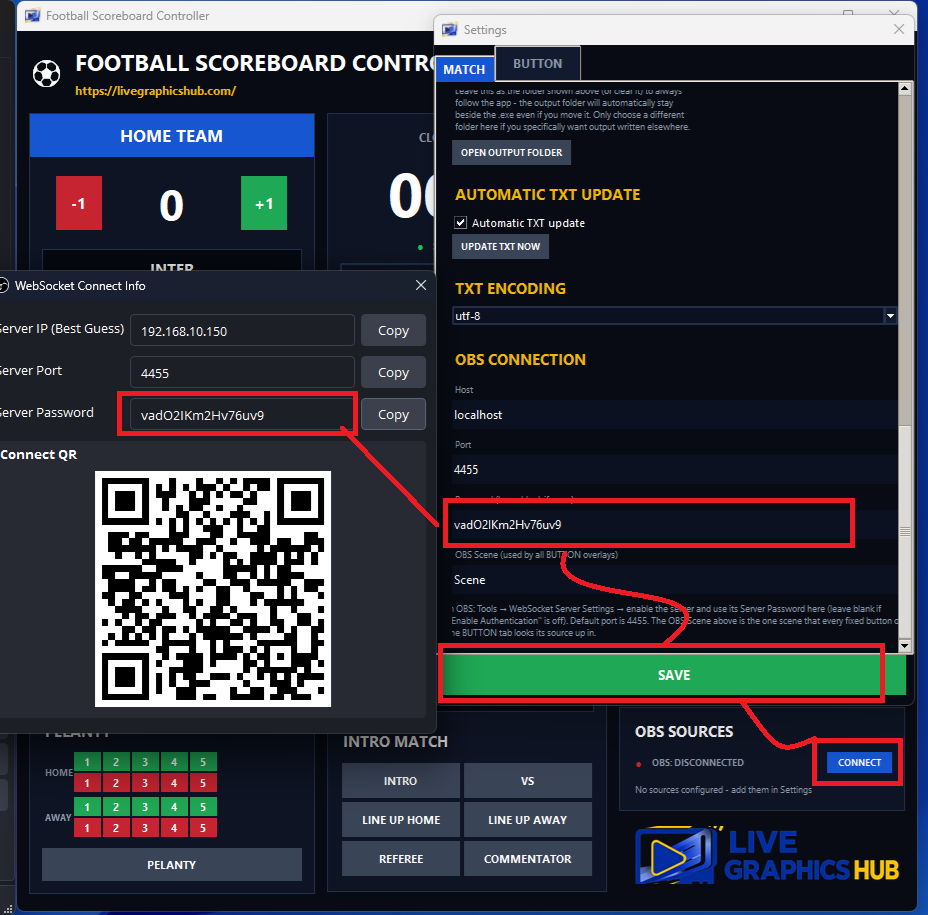
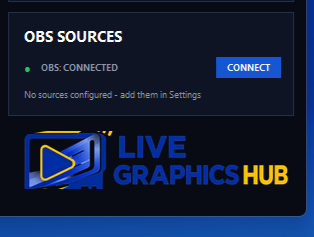
6. Verify Successful Connection The status indicator under OBS SOURCES in the controller will turn green and display OBS: CONNECTED, confirming that the panel is linked and ready to control live graphics.
Reviews
There are no reviews yet.